1. Rename many files at once in Finder
- Open the folder and select the files. Press Command A to select all.
- Control click one of them and choose Rename.
- Pick Replace Text, Add Text or Format.
- Type what to find and what to put instead. The Example line shows the result before you commit.
- Click Rename.
This is the right tool for a one off. It is built in and you can see the result first.
2. Make it repeatable with Shortcuts
- Open Shortcuts and create a new shortcut.
- Add the action Get Selected Files in Finder.
- Add Rename File and set the new name, for example with today's date in front.
- In the shortcut's details, turn on Use as Quick Action and tick Finder.
Now you can select files in Finder, open the Quick Actions menu and run it. Good when you do the same rename every week and you do not mind building it once.
3. Say what you want
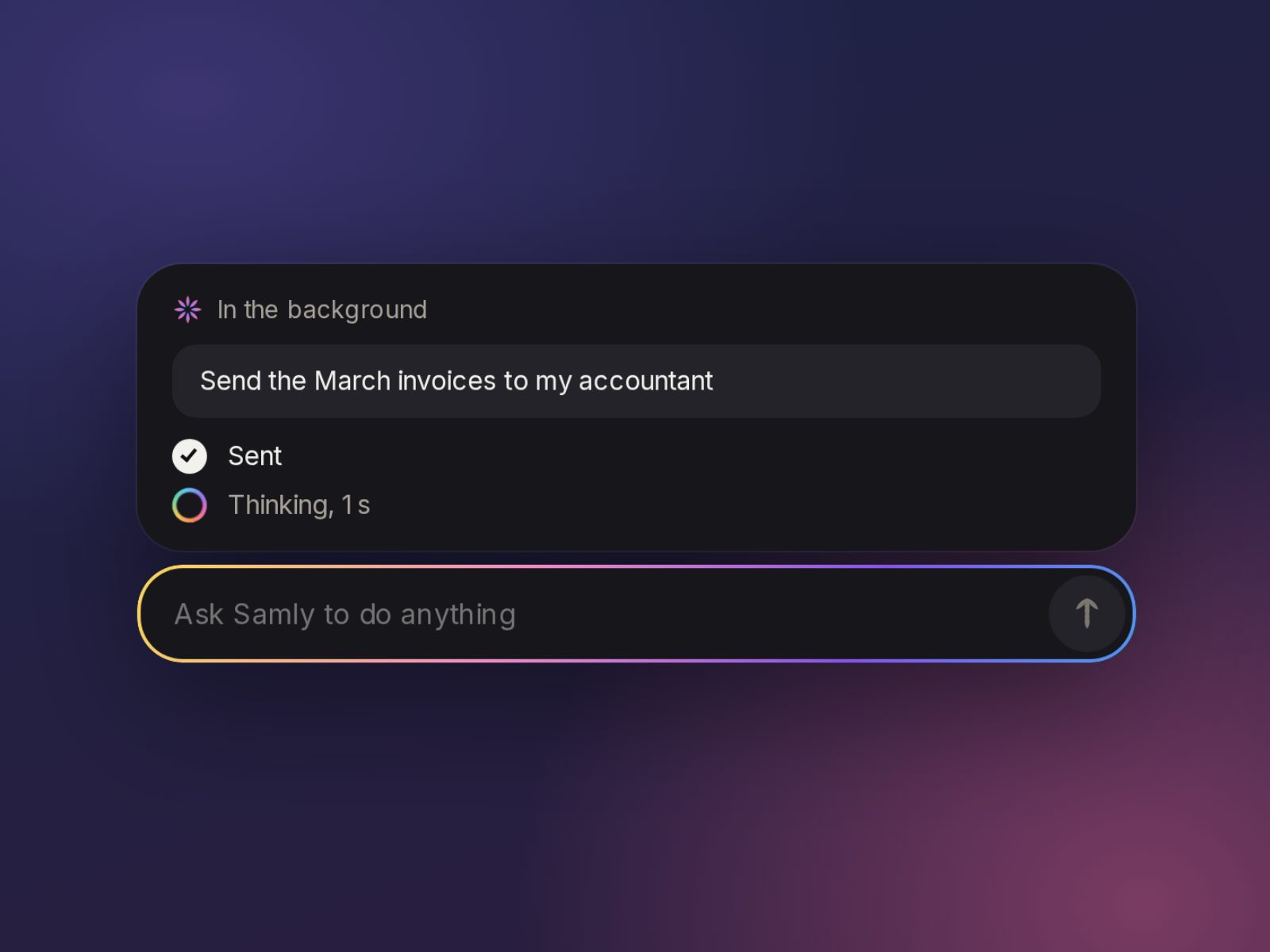
If you would rather describe the rename than build it, ask Samly in the Quick box: "Rename the files in this folder to the date, then the client name, then a number." You watch it work in Finder and can undo the change afterwards. When you ask for the same rename again, it is quicker.
Which should you use?
One folder, once: Finder. The same rename every week and you enjoy building: Shortcuts. The same idea but the rule changes each time: say it to Samly.
A habit that saves you
Before any bulk rename, copy the folder first. Finder lets you undo a rename right after with Command Z, but a copy costs nothing.