Voice Control, built into macOS
- Open System Settings and go to Accessibility.
- Choose Voice Control and turn it on.
- Say "Show numbers" to put a number next to everything you can click, then say the number.
It is made for people who cannot use a mouse and it is very thorough. It works on the screen, step by step, so a job still takes many spoken commands.
Dictation, for writing
- In System Settings open Keyboard.
- Turn on Dictation.
- Press the dictation shortcut and speak where you would type.
Dictation turns speech into text in any text field. It does not do the job for you, it types what you say.
Saying the whole job
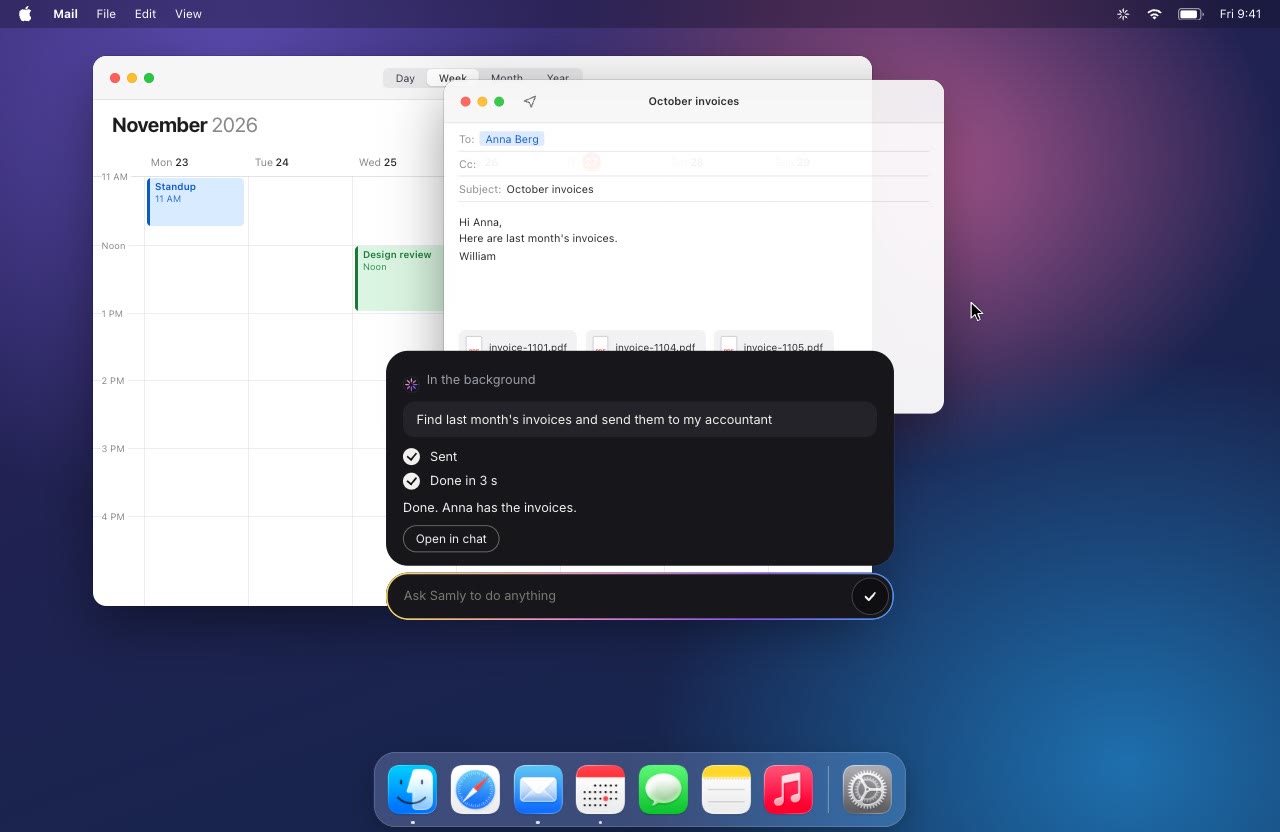
With Samly you say the result, not the clicks: "Send the March invoices to the accountant." Say "Hey Samly" or press the shortcut for the Quick box. Samly then works in your apps and tells you when it is done.
Tips that work with any of them
- Speak in short complete sentences.
- Say names the way they are written in your contacts.
- For anything that sends something to another person, read what is shown before you say yes.